
Employee guide
First-time setup
Follow the steps in order. The screenshots below match the live portal and mail flow (invitation → set password → sign in and optional password reset).
← Back to guide homeInvitation email → tap the link → set password (8+ characters) → next time use Sign in with email + password.
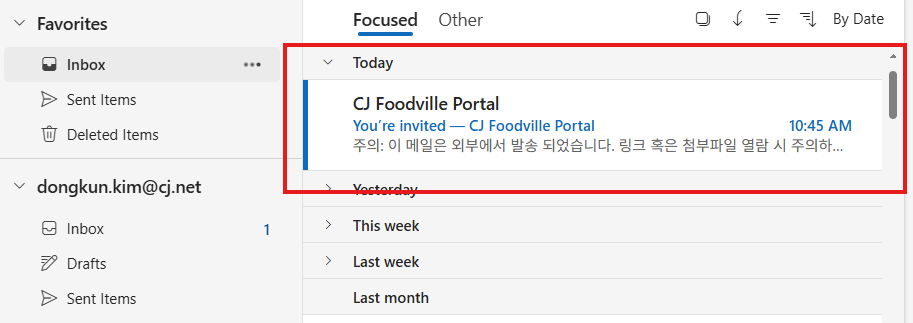
When your account is created, your company email is registered in the system. You will receive an invitation message. Subject line and sender vary—check inbox, spam, and other tabs.
The email usually shows who the portal is for and contains a button or highlighted link. Do not forward the link; it is meant for you.
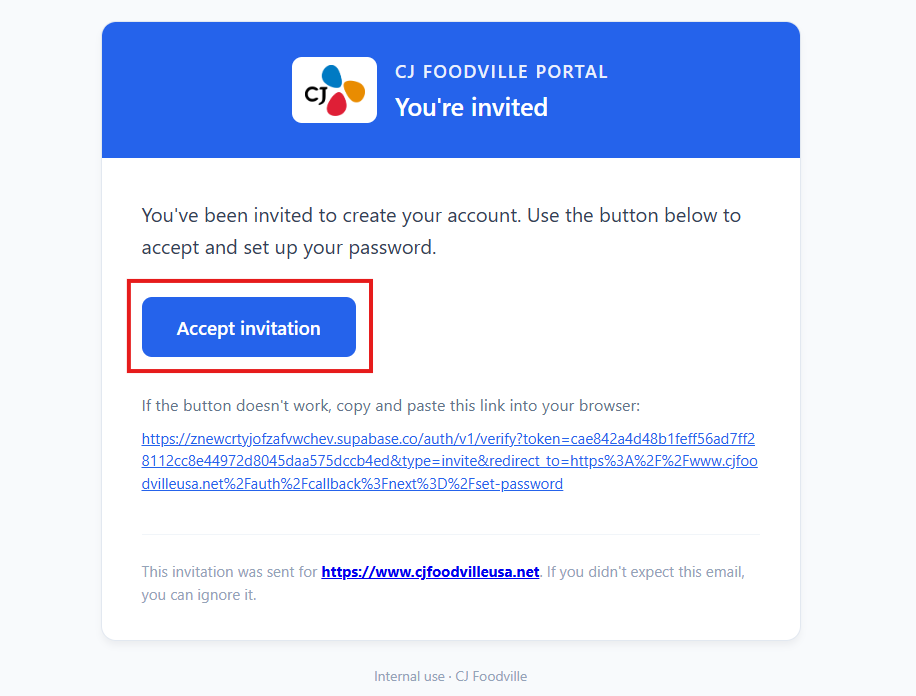
Click the link on the same device you plan to use if possible. The browser may open a new tab. The app verifies the token and then sends you to set password. You might briefly see a loading or redirect screen—that is normal.
If you see an error toast or land on Sign in with “expired or invalid link,” the token may be used up or past its time limit—request a new invitation from IT.
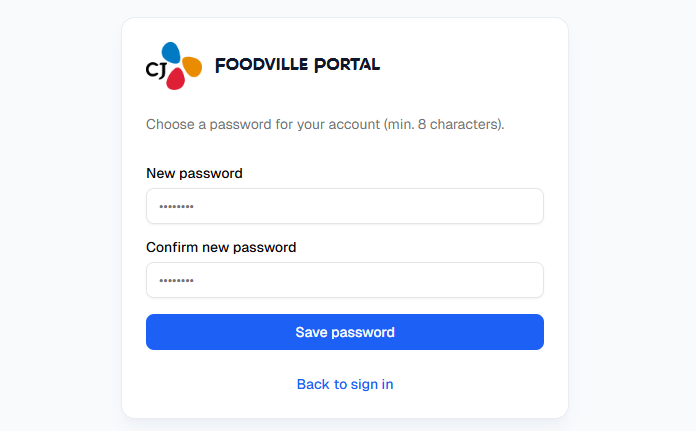
On the New password and Confirm new password fields, type the same value twice. Passwords must be at least 8 characters (longer is better).
Press Save password. On success you should enter the portal (often the Dashboard). If an error appears, read the message and try again, or contact IT.
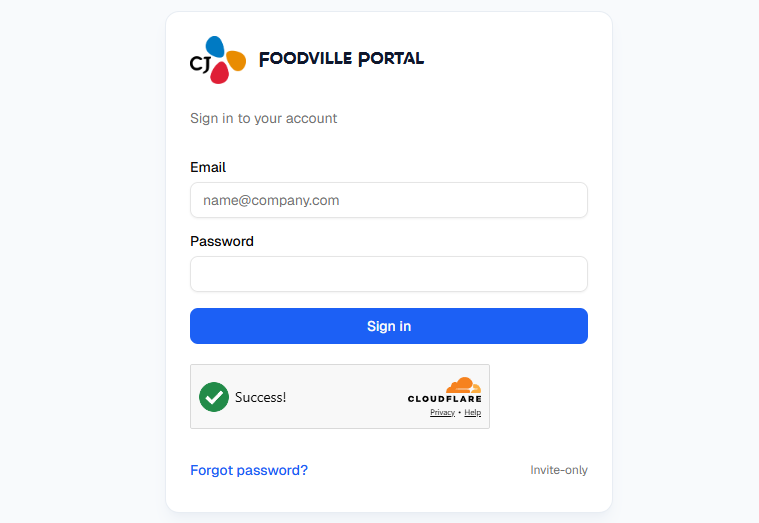
Bookmark the portal URL. Open Sign in, enter your email and the password you created. Complete CAPTCHA if the page shows one.
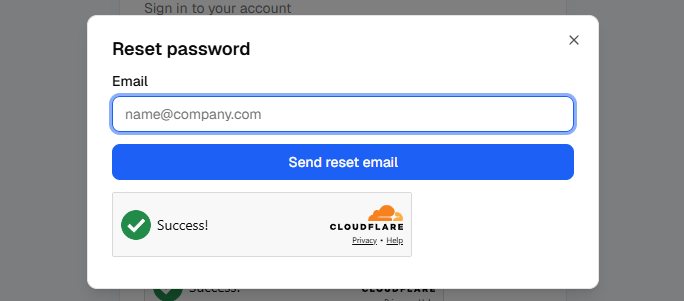
Forgot password? on the sign-in page sends a reset email. That is not the same as the first-time invitation link.
- Expired or invalid link: ask for a new invitation—do not reuse an old email link.
- Password save fails: check minimum length and that both fields match; try another network or browser if it persists.
- Menus look different after login: your role may show different options. Ask your manager if you expected the same view as a colleague.