
Open Meeting Rooms from the top navigation (or the ☰ menu). The page uses 30-minute slots. Use This week to pick a day and start booking, My reservations for your week at a glance, and All rooms · day view for every room on the selected day.
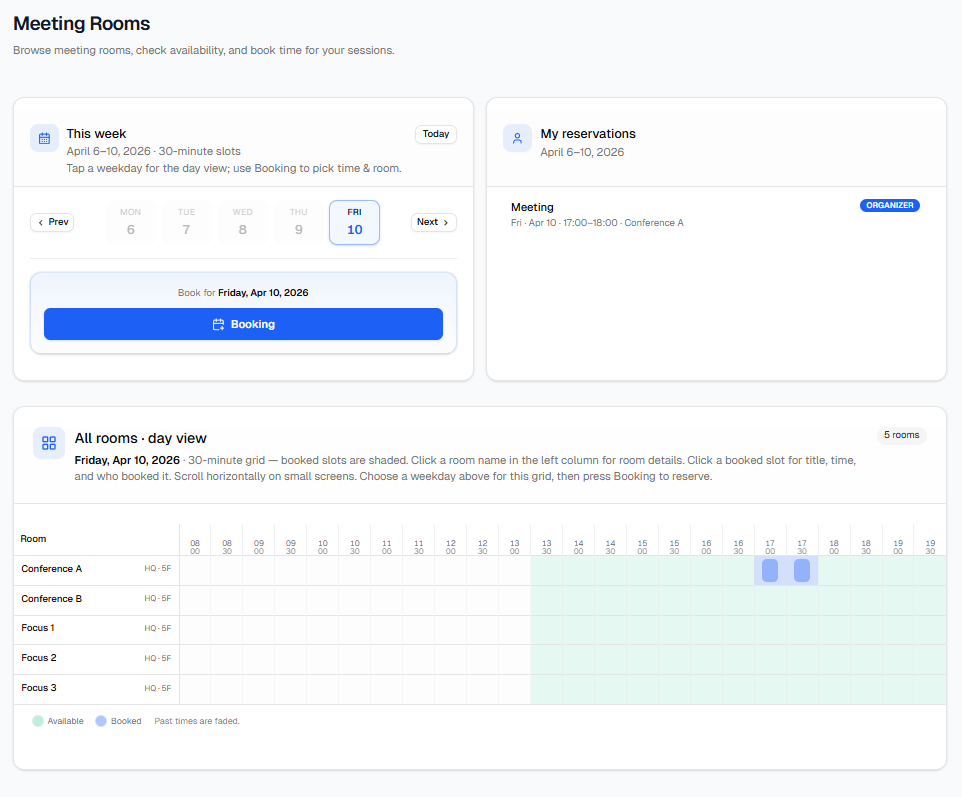
This week — Pick the workweek, choose which weekday is highlighted, and press Booking when you are ready to reserve time. The highlighted day drives what you see in All rooms · day view and which date you book for.
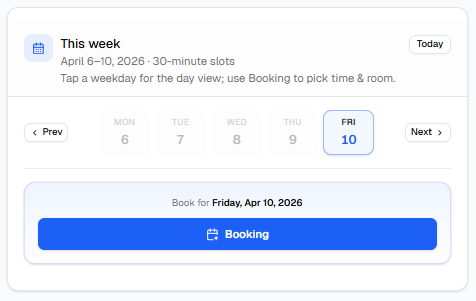
My reservations — Lists your meetings for the same week range. Each line shows title, day, time range, and room. Badges show whether you are the Organizer or Invited. Tap a row to open the same detail view as when you click a booked slot in the grid.
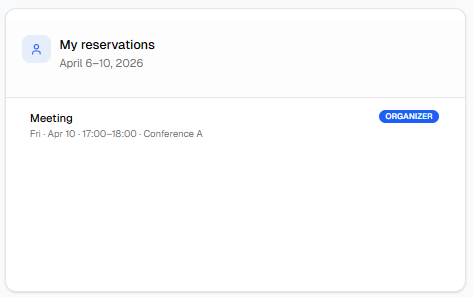
All rooms · day view — A grid: rooms on the left, time columns across the top. Booked cells are shaded; free windows show as available. When you change the weekday in This week, this grid reloads for that date so you always see current bookings for the day you are focused on. Scroll sideways on small screens if needed.
This week
- Use Prev / Next to move the week, or Today to jump back to the current week anchor.
- Tap a weekday chip (Mon–Fri) to select that day. Past dates are disabled. The selected day is used for the All rooms · day view and for the label above the Booking button ("Book for [date]").
- Press Booking to open the Time & room section below (scrolls into view). If you switch weekdays again, you may need to press Booking again for the newly selected day.
My reservations
Use this panel to quickly review what you have coming up. Organizer means you created the booking; Invited means someone else booked and included you. If the list is empty, you have no meetings in that week window. Click any entry to open the detail dialog (title, room, time, who booked).
All rooms · day view
- The header shows the exact calendar date for the grid. Booked slots are filled; free slots use the "Available" styling from the legend at the bottom.
- Click a room name on the left to open room details (capacity, location, amenities) without leaving the page.
- Click a booked cell to see that reservation's details (and cancel, if you are allowed—see below).
- On today, times that have already passed are faded so you do not try to book in the past.
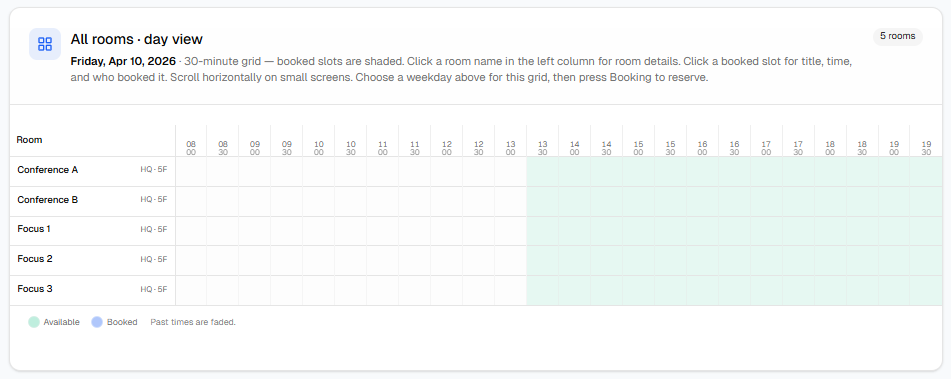
Time & room (after Booking)
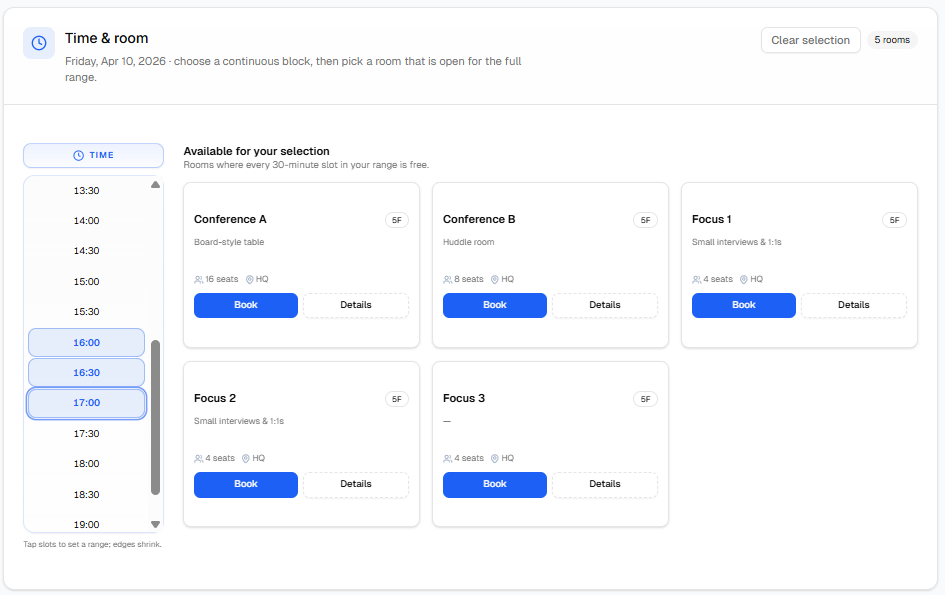
After you press Booking, the Time & room card appears. It has two parts:
- Left — Time (clock rail): Tap one or more consecutive 30-minute slots to build a continuous range (your meeting length). Tap again to adjust the range; the hints explain "edges shrink" behavior. Slots that are in the past, or where every room is already busy, are disabled. Use Clear selection to start over.
- Right — Available for your selection: After a range is selected, the portal lists only rooms that are free for every slot in that range. If nothing appears, try a shorter time range or different times—the banner explains when no room fits the whole period.
- On a room card, use Book to continue, or Details for room information only.
Confirm booking
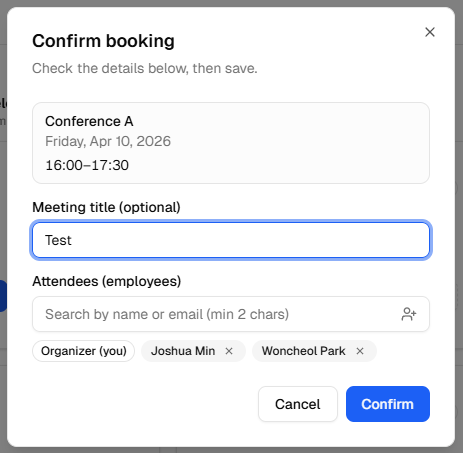
When you press Book, a Confirm booking dialog opens.
- Check the summary: room name, date, and time range.
- Meeting title (optional) — helps others recognize the meeting.
- Attendees (employees) — optional. Type at least two characters to search the employee directory, then add people. You always appear as Organizer (you). Guests are stored on the reservation after it is created.
- Press Confirm to save, or Cancel to close without saving. If someone else books the same slot first, you may get a time overlap error—pick another slot.
After a successful booking, the system sends a confirmation email to you (the organizer) at your work email from the employee directory, or your login email if a directory email is not set. The message includes a calendar attachment (invite.ics) and links to add the event to Google Calendar or Outlook on the web. If email is not configured on the server, you will still see the reservation in the app but may not receive mail—contact IT if that happens.
Viewing or cancelling a meeting
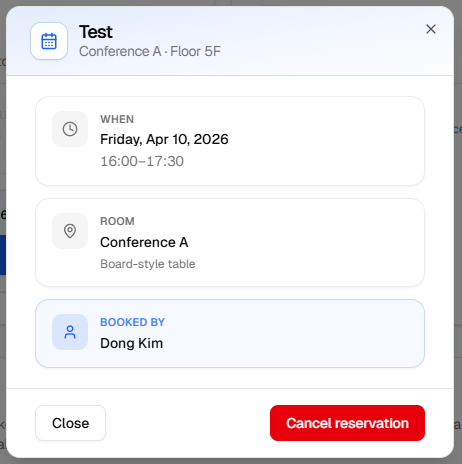
Open a booking from My reservations or by clicking a booked cell in All rooms · day view. The dialog shows title, room, time, and Booked by.
- Cancel reservation appears only if you are the organizer (the person who created the booking). Guests cannot cancel someone else's meeting from here.
- After you confirm cancellation, the meeting is removed. The app sends cancellation emails (when mail is configured) to the organizer and to invited attendees who have email addresses on file—each person gets their own message. If some addresses fail, you may see a notice; the reservation is still cancelled.
- Use Close to exit the dialog without cancelling.
Dashboard: Your dashboard may also list upcoming meetings—use View all there to return to Meeting Rooms.
Conflicts: If saving fails with a time overlap, choose different times or another room—the day view updates live so you can see what is free.