Desktop (wide screen)
On the left, the CJ logo and Foodville Portal title link back to Dashboard. To their right you always have Dashboard, Announcements, Meeting Rooms and My assets—click to switch sections.
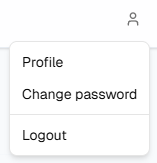
On the right, the person (user) icon opens your account menu: Profile, Change password, and Logout at the bottom.

Account menu (desktop)
Click the person icon. The panel lists Profile and Change password, then Logout below a separator. My assets is no longer here—it moved to the main top bar with the other section links.
Phone & small screens
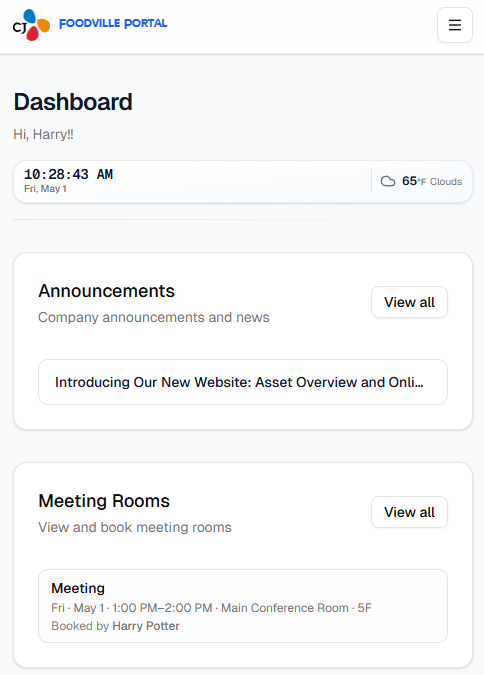
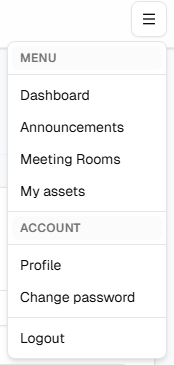
The main links move into the menu (☰) button (top right on small viewports). Open it to see Menu (Dashboard, Announcements, Meeting Rooms, My assets), then Account (Profile, Change password), and Logout at the bottom.