Open My assets from the top bar next to Dashboard, Announcements, and Meeting Rooms (desktop), or from the ☰ Menu section on mobile (same four links). Top bar & menus shows those menus in more detail if you need them.
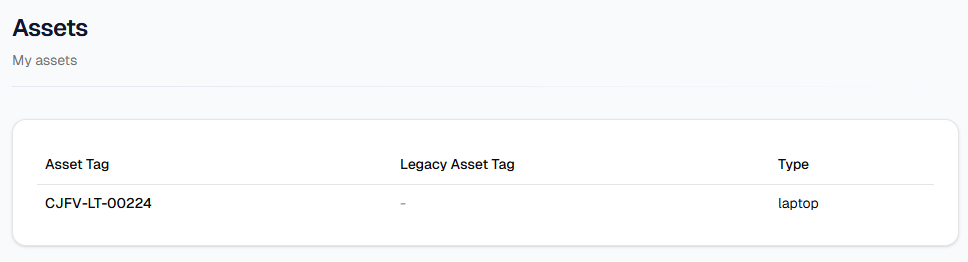
Each row is one item IT has assigned to you. The columns are:
- Asset Tag — The main tag; it is a link to the asset detail page (see below).
- Legacy Asset Tag — An older or alternate tag, if any.
- Type — The kind of asset (for example laptop or monitor).
If you have no assignments, the table shows No assets assigned. That is expected until IT adds equipment to you. Use the list to match what IT expects you to have; if something is wrong, contact IT with a screenshot. You cannot assign assets to yourself from this screen.
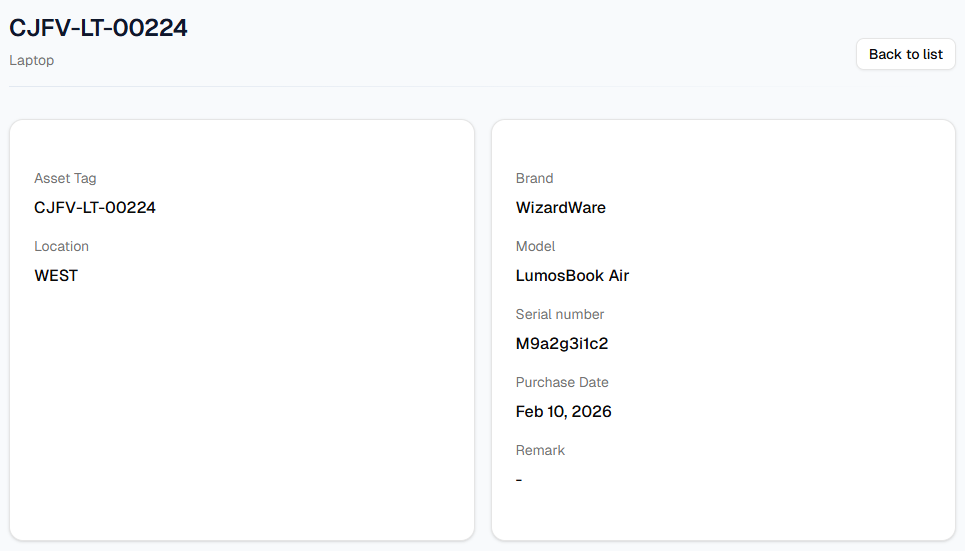
Asset detail
Click an Asset Tag in the list to open that item’s detail page. There you will see more fields—such as location, brand, model, serial number, and purchase date—depending on what IT stores. (Internal remarks stay in Admin for IT and administrators.) Use Back to list in the header to return. Detail only opens for assets that appear on your list; bookmarked or guessed links for other items will not work.