
Open Profile from the person icon menu (desktop) or from the Account section in the ☰ menu on mobile. Top bar & menus has more screenshots of that menu if you need them.
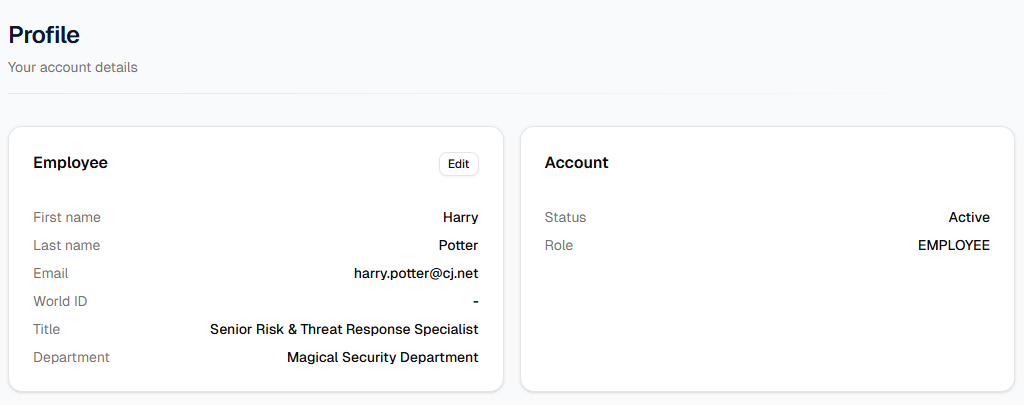
The two cards
The title is Profile with the subtitle Your account details. On a wide screen the two cards sit side by side; on a phone they stack.
- Employee — First name, last name, email, World ID, title, and department. Values start as read-only lines. Use Edit in the card header to change the fields you are allowed to edit.
- Account — Status (for example Active) and Role. This card is read-only; you cannot change your role here.
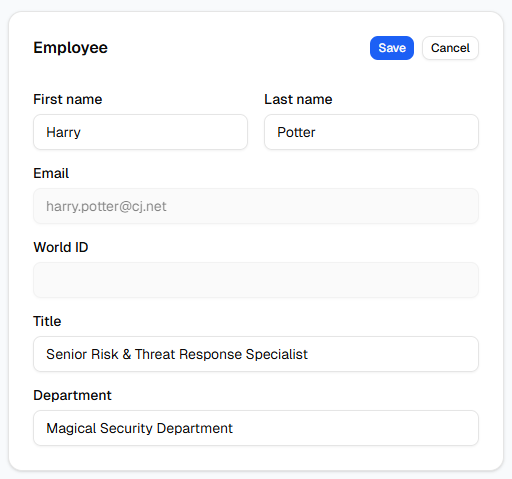
Editing Employee details
- In the Employee card, click Edit.
- You can change First name, Last name, Title, and Department.
- Email and World ID stay greyed out—they are not editable on this screen. For login email or ID changes, contact IT or HR.
- Click Save to apply changes (the page reloads after a successful save). Click Cancel to discard and return to read-only view.
No employee record
If the Employee area shows No employee record found, your account is not linked to an employee row yet. You can still read Account, but the Employee editor stays unavailable until IT or HR links your login—ask them to connect it.